Data Collection Tools and Diagnostic Services : Recovering Privacy and Deleting Unwanted Data Collection with EyeDown
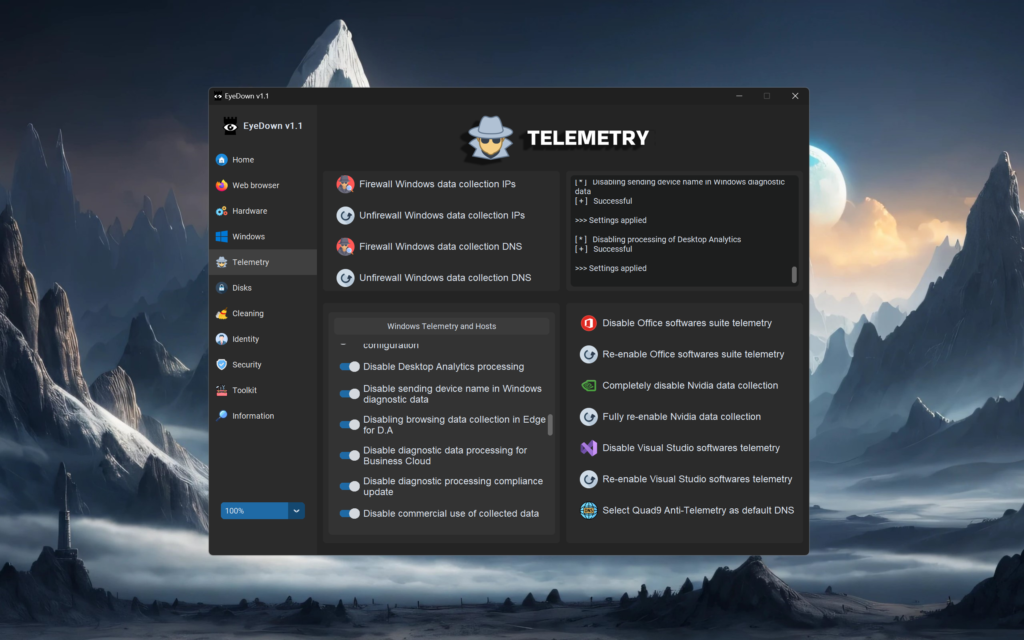
Data collection tools and diagnostic services are often used by Windows to gather information about system performance and user activities. Managing these settings is crucial to prevent unauthorized data collection and to ensure that your personal information remains private. EyeDown provides comprehensive tools to manage these settings, ensuring that your data is protected and your system runs efficiently. This article explores the key options in the Data Collection Tools and Diagnostic Services packet, highlighting their benefits for privacy, security, and system performance.
How to Use the Data Collection Tools and Diagnostic Services Settings
EyeDown makes it simple to manage your data collection tools and diagnostic services settings. Simply toggle the options on or off to activate or deactivate each feature. When an option is enabled, EyeDown ensures that the corresponding setting is applied, blocking unwanted data collection and enhancing privacy. If disabled, the setting reverts to its default state, allowing you to customize your preferences based on your needs.
Options in the Data Collection Tools and Diagnostic Services Packet
Disable step recorder (screen, mouse, keyboard, user interface)
- Purpose : Prevents Windows from recording screen captures, mouse movements, keyboard inputs, and user interface interactions.
- Description : This setting stops the step recorder from collecting detailed activity logs, ensuring that your interactions with your computer remain private and unmonitored.
Disable the inventory collector task
- Purpose : Prevents Windows from running the inventory collector task, which gathers information about installed software and hardware.
- Description : By disabling this task, you ensure that your system’s hardware and software inventory is not collected and reported to Microsoft, protecting your system details from being shared.
Disable “Connected User Experiences and Telemetry” service (DiagTrack)
- Purpose : Prevents the DiagTrack service from collecting and transmitting telemetry data.
- Description : This setting stops the DiagTrack service, which is responsible for gathering diagnostic and usage data, ensuring that your system’s performance and usage information is not transmitted to Microsoft.
Disable the WAP push notification routing service
- Purpose : Prevents the WAP push notification service from routing notifications.
- Description : By disabling this service, you ensure that push notifications are not routed, reducing unnecessary network traffic and potential data leaks.
Block Windows Diagnostics Hub Standard Collector service
- Purpose : Prevents the Diagnostics Hub Standard Collector service from collecting diagnostic data.
- Description : This setting blocks the Diagnostics Hub Standard Collector service, ensuring that diagnostic data is not collected or transmitted, protecting your system’s performance data.
Disable “Diagnostic Execution Service” (diagsvc)
- Purpose : Prevents the Diagnostic Execution Service from running and collecting data.
- Description : By disabling this service, you stop the execution of diagnostic tasks, ensuring that your system’s diagnostic data is not collected or reported.
Disable task “Device”
- Purpose : Prevents Windows from running the “Device” task, which collects data about connected devices.
- Description : This setting stops the “Device” task, ensuring that information about your connected devices is not collected or transmitted.
Disable task “Device User”
- Purpose : Prevents Windows from running the “Device User” task, which collects data about device usage.
- Description : By disabling this task, you ensure that usage data for connected devices is not collected, maintaining your privacy.
Disable data collection tool on devices and configuration
- Purpose : Prevents the data collection tool from gathering information about devices and configurations.
- Description : This setting blocks the data collection tool, ensuring that information about your devices and system configuration is not collected or shared.
Disable Desktop Analytics processing
- Purpose : Prevents Desktop Analytics from collecting and processing data.
- Description : By disabling Desktop Analytics, you ensure that data about your desktop usage and configurations is not collected or processed, protecting your system’s information.
Disable sending device name in Windows diagnostic data
- Purpose : Prevents Windows from including the device name in diagnostic data.
- Description : This setting ensures that your device name is not transmitted in diagnostic data, protecting your identity and system details.
Disabling browsing data collection in Edge for D.A
- Purpose : Prevents Microsoft Edge from collecting browsing data for Desktop Analytics.
- Description : By disabling this feature, you ensure that your browsing data in Edge is not collected or transmitted, maintaining your online privacy.
Disable diagnostic data processing for Business Cloud
- Purpose : Prevents diagnostic data from being processed for Business Cloud services.
- Description : This setting stops the processing of diagnostic data for Business Cloud services, ensuring that your business-related activities and data are not shared.
Disable diagnostic processing compliance update
- Purpose : Prevents compliance updates from processing diagnostic data.
- Description : By disabling this feature, you ensure that diagnostic data is not processed for compliance updates, protecting your system’s information.
Disable commercial use of collected data
- Purpose : Prevents the commercial use of data collected from your system.
- Description : This setting ensures that data collected from your system is not used for commercial purposes, maintaining your privacy and control over your data.

Additional Benefits of Data Collection Tools and Diagnostic Services Settings
Enhanced Privacy Protection : Managing data collection tools and diagnostic services settings reduces the risk of unauthorized data collection and misuse, safeguarding your personal information.
Improved System Performance : By preventing unnecessary data collection and transmission, you can reduce background processes, leading to faster response times and improved system efficiency.
Increased Control and Customization : Allowing you to decide how and when data is collected ensures that your system operates according to your privacy preferences.
Better Resource Management : Minimizing unnecessary data collection activities frees up system resources for essential tasks, improving overall performance and stability.
Conclusion
Managing data collection tools and diagnostic services settings is crucial for protecting your data, enhancing system performance, and maintaining control over your personal information. The comprehensive tools provided by EyeDown ensure that your privacy is safeguarded and your system runs efficiently. By enabling these options, you can protect your sensitive data, reduce interruptions, and optimize system performance.
Invest in EyeDown to take control of your data collection tools and diagnostic services settings, and enjoy a more secure, efficient, and private computing experience. Protect your digital life and enhance your system performance with EyeDown today !
 English
  French
  Spanish
  Russian